
Screenshots
About this app
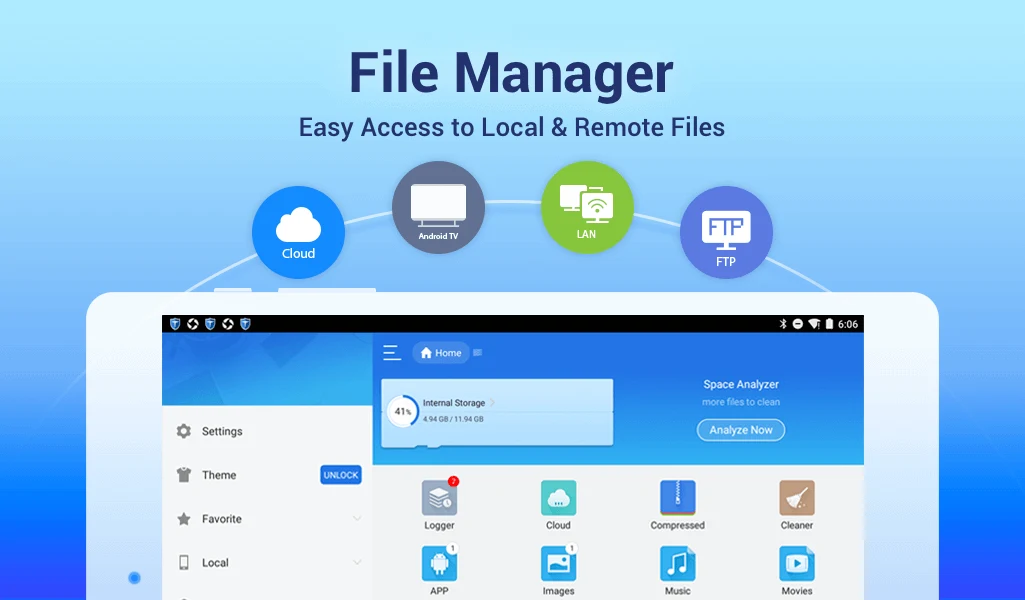
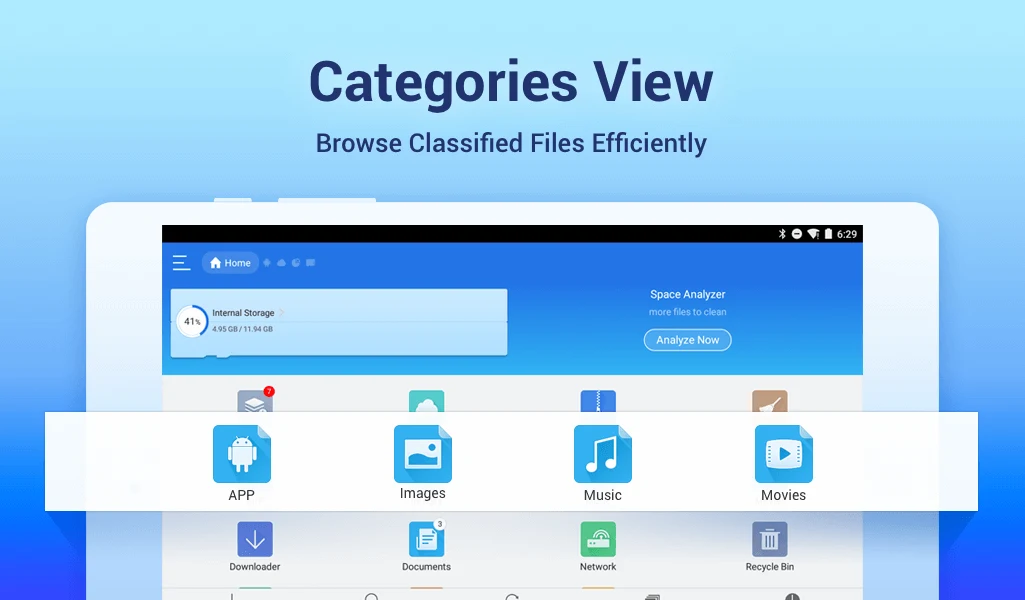
ES File Explorer File Manager is a comprehensive file management application designed for Android devices running Android 4.2 and higher. It offers a suite of powerful tools that allow users to quickly organize and categorize files for easy retrieval. With this app, you can easily browse files and use a variety of built-in functions, including remote file access via cloud storage and a built-in file transfer tool that simplifies device management. Whether you need to handle routine folder operations, connect to network servers, or clean up device storage, ES File Explorer File Manager provides a centralized hub to keep your digital content structured and accessible.
How do you manage local and batch file operations?
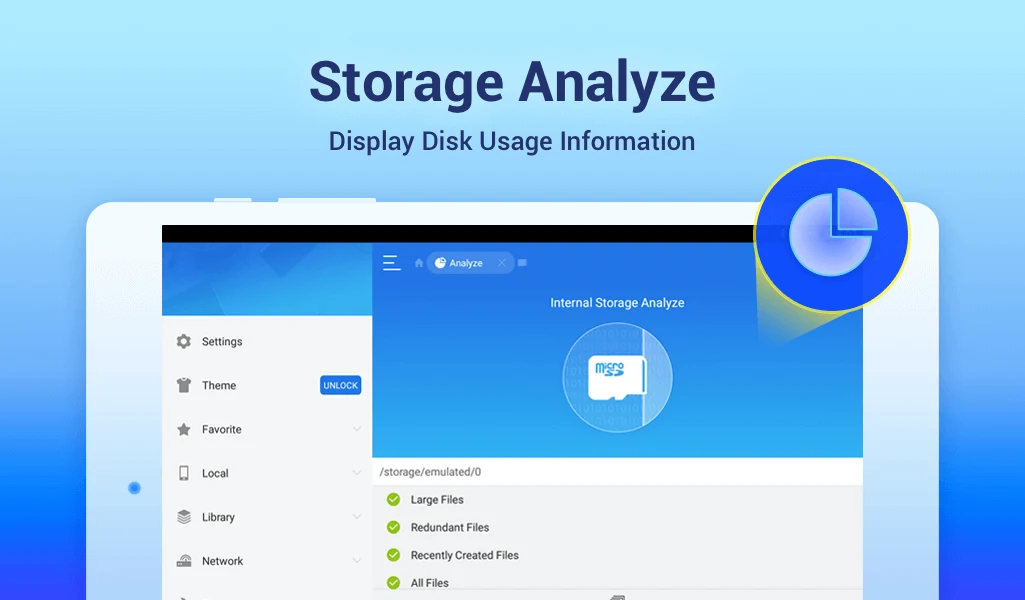
ES File Explorer File Manager lets you execute essential file management tasks such as copying, moving, renaming, deleting, and creating files and folders with batch select capabilities. Routine actions are made fast through the app's toolbar and long press menu. To handle various media and text formats, the application includes built-in viewers and players so you can click to play music and videos or directly inspect images and documents. Users can also utilize the app's SD Card Analyst utility to find large, duplicate, and redundant files, helping them reclaim valuable device storage space.
How does cloud storage and remote network access work?
The app allows you to integrate popular cloud services like Dropbox, Google Drive, OneDrive, Amazon S3, and Yandex, displaying cloud folders directly alongside your local storage. This setup enables you to browse and transfer files across different clouds without needing to download them to your device first. For local area networks and remote servers, ES File Explorer File Manager connects to FTP, FTPS, SFTP, and WebDAV servers, and can browse desktop PCs over SMB on a LAN. Furthermore, you can edit mobile files from a computer over the network and use the Sender tool to transfer applications, images, music, movies, and documents between phones via the same Wi-Fi mode or an auto-created hotspot without using mobile data or cables.
What tools are available for archives and file security?
To help save space and share groups of files, the application includes built-in ZIP and RAR support that allows you to compress and decompress ZIP files, unpack RAR files, and create encrypted archives. For sensitive content, ES File Explorer File Manager supports AES 256-bit encryption for ZIP files, allowing you to secure project folders and personal documents with a password before sharing or storing them.
What advanced features are included for power users and device maintenance?
Advanced users can access the Root Explorer feature, which unlocks system folders and permission changes on devices with root access. The app also features a code and note editor equipped with syntax highlighting for quick text modifications, alongside configurable views and custom shortcuts to build a personalized workflow. For device maintenance, the App Manager lets you back up applications, uninstall them, or create shortcuts, while a task killer and cache cleaner help free memory when your device slows down.
Who will find this file manager most useful?
ES File Explorer File Manager is particularly useful for advanced Android users and individuals who manage large quantities of data across multiple platforms. People who regularly juggle local storage, cloud drives, network servers, and compressed archives will benefit from having these capabilities centralized in a single application. Additionally, users looking to transfer files wirelessly between phones or clean up redundant storage items will find the built-in utilities and customization options practical for their daily workflow.
Version history
View all09 Sep 2026 · stable
Frequently asked questions
How do you open ES File Explorer after installation?
To open ES File Explorer, install the APK, locate the ES File Explorer icon in your app drawer, and tap it. On the first launch, make sure to grant storage permissions so the app can properly display and manage your files.
How can you customize the appearance and layout of the app?
You can personalize your file management experience by taking advantage of theme selection, switching between grid and list views, and adjusting various sorting options to suit your personal preferences.
How do you use cloud syncing to access files across multiple devices?
You can add supported cloud drive services like Dropbox, Google Drive, and OneDrive to the app. This integration syncs your files and ensures you always access the latest version without performing manual file transfers.