
Screenshots
About this app
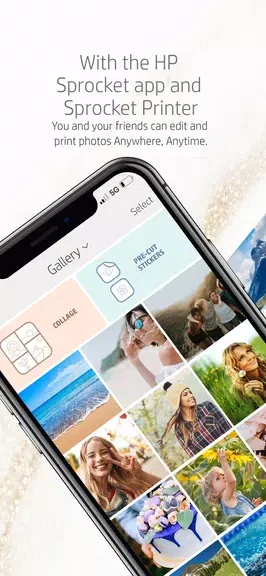
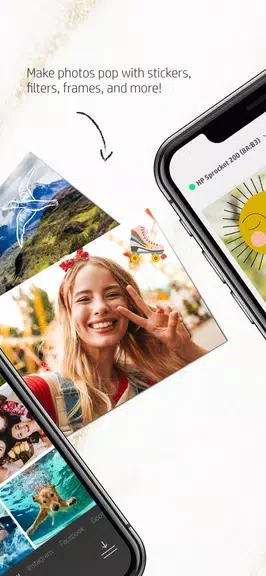
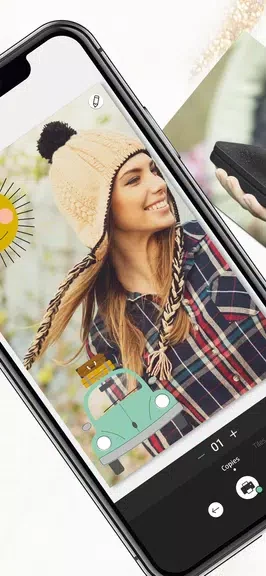
HP Sprocket helps turn photos stored on a smartphone or social media into printed keepsakes. Select an image in the app, make edits, and print it with an HP Sprocket printer on photo paper or sticker paper. The editing tools let you add text, borders, and emojis, so a print can be personalized before it leaves the printer. This can be useful for people who want a physical copy of a favorite image or a sticker version to decorate belongings. The app also supports different photo paper sizes, giving users options for how their images are printed.
From photo selection to print
The app brings photo selection and editing together: choose a memorable image from a phone or social media, adjust it with the available creative touches, and print it through a paired HP Sprocket printer. These steps make it possible to prepare an image in the app rather than printing it without changes. The available choices include text, borders, and emojis, while the paper options include classic photo paper and sticker paper.
Paper choices and portable printing
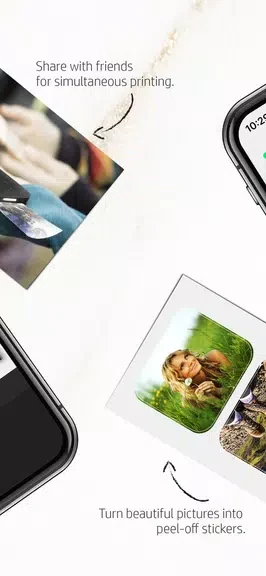
HP Sprocket supports printing on various sizes of photo paper, as well as sticker photo paper. The printers are described as compact and lightweight, which makes them easier to carry for printing away from home. The app is designed to pair with an HP Sprocket printer for this mobile printing workflow.
Bluetooth pairing and connection
The printer connects to a phone or tablet over Bluetooth. Enable Bluetooth on the mobile device, turn on the printer, and follow the pairing instructions in the app. Bluetooth has a limited range; the supplied guidance recommends keeping the mobile device within about 10 metres (33 feet) of the printer for a stable connection.
When a printer shows an error
If the printer blinks in a particular pattern or displays a symbol, consult its user manual to interpret the indicator. The source notes that an indicator may relate to low battery, a paper jam, or a Bluetooth connection problem. Checking the manual can help identify what the printer is signaling before you continue printing.
Version history
View all24 Oct 2024 · stable
Frequently asked questions
How does HP Sprocket connect to a phone or tablet?
It connects over Bluetooth. Enable Bluetooth on the mobile device, turn on the printer, and follow the pairing instructions in the app.
What can I add to photos before printing?
The app includes editing options such as text, borders, and emojis.
What should I do if the printer shows an error indicator?
Refer to the printer's user manual to interpret a blinking pattern or symbol. It may indicate low battery, a paper jam, or a Bluetooth connection issue.