Screenshots
About this app
VPhoneGaga creates a separate virtual space on an Android device, allowing users to install cloned applications and keep multiple instances of the same app available. This can be useful when two accounts are needed for an application such as WhatsApp, or when apps and related data should be kept apart from the primary phone environment. Each space can be given its own name, icon, and background, while notifications can be managed separately to reduce confusion between accounts. The app is designed to work without requiring root access, although some premium features may require a subscription.
Separate spaces for cloned applications
The app’s central function is application cloning. After starting its virtual environment, users can install supported apps inside it and operate another instance alongside the version on the main device. This setup is intended for people who manage more than one account or want to keep a second app profile separate. Social applications are given as an example, but the source describes the feature generally as a way to clone apps and games.
Applications installed in the virtual space remain associated with that environment rather than appearing as ordinary installations in the main phone interface. This gives the user a distinct area for handling the cloned versions. The source also describes the space as suitable for saving apps and files separately, though the exact amount of usable storage will depend on the device and the virtual environment.
Personalizing the virtual phone
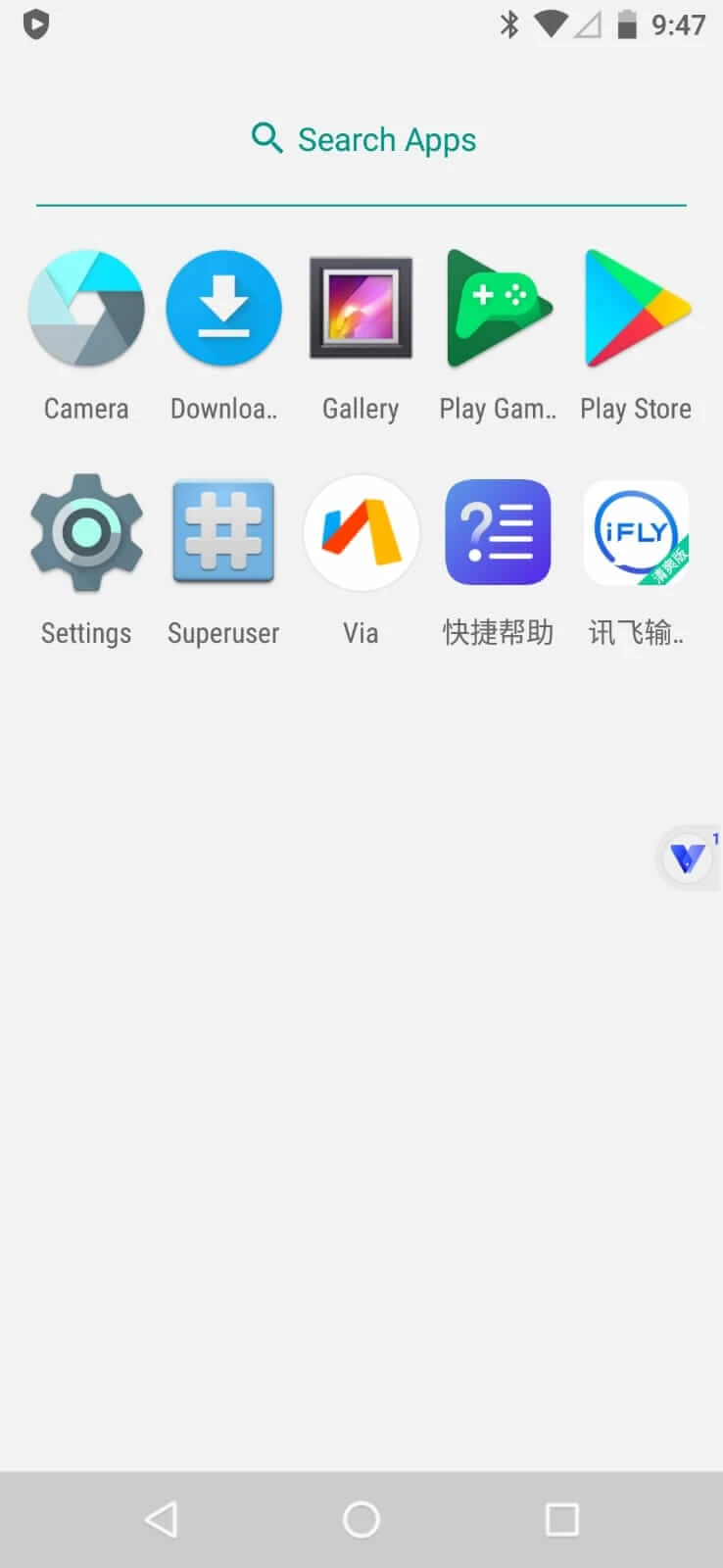
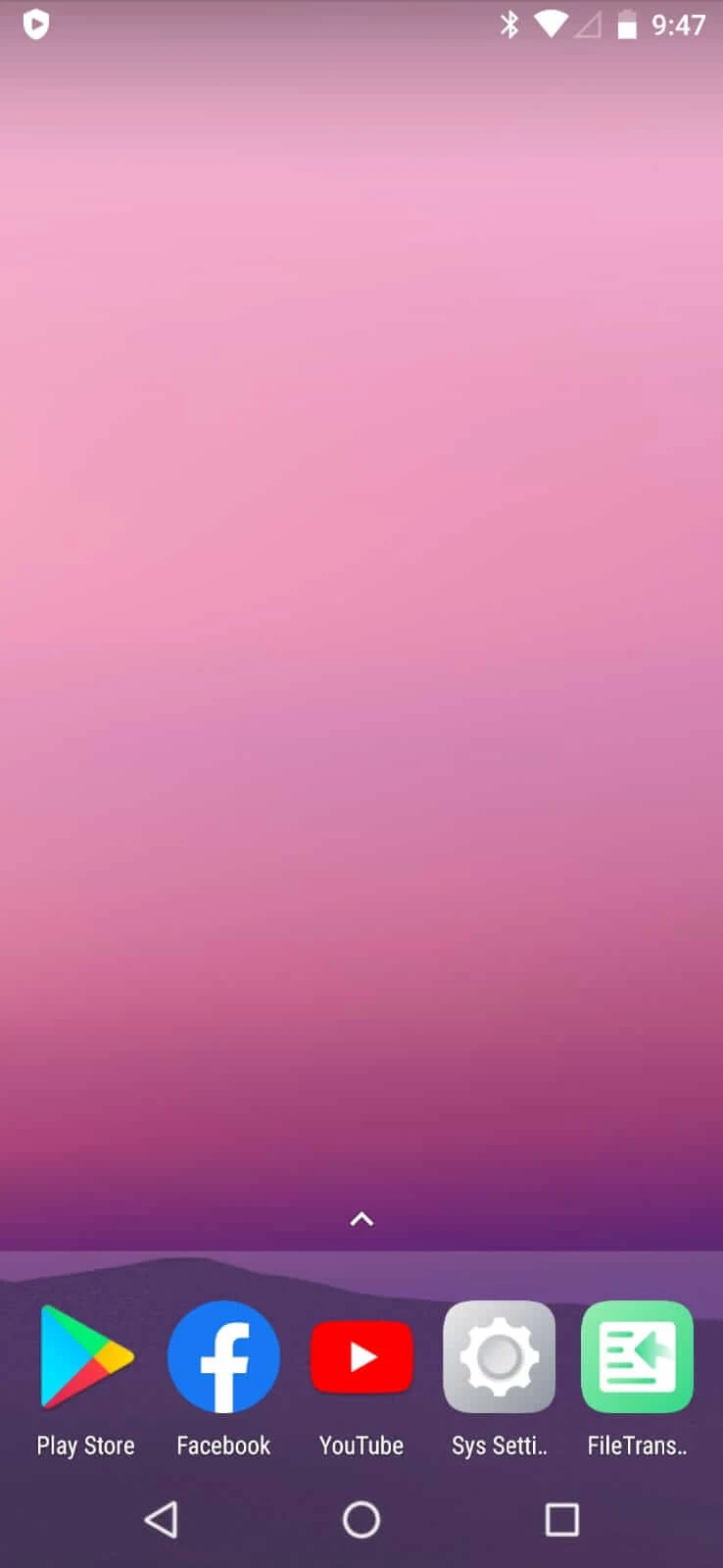
VPhoneGaga presents a home screen with icons, menus, and basic settings that can be navigated with familiar Android actions such as tapping, swiping, and opening menus. Users can adjust wallpapers, icon layouts, widgets, themes, styles, and animations to create a different appearance from the primary device. The virtual space can also be renamed and assigned a different icon or background, making separate environments easier to recognize.
Customization extends beyond visual design. The settings area includes controls for brightness, sound options, notifications, and aspects of interface behavior. These controls work alongside the home-screen options, so users can change both the appearance and some operating preferences of the simulated phone rather than relying only on a different wallpaper or icon arrangement.
Notifications, privacy, and access
Notifications can be handled for each virtual space independently. This is useful when multiple accounts would otherwise send similar alerts to the same notification area, because the user can manage the spaces separately instead of treating every alert as part of one account. The app also offers a password lock for the private space, according to the supplied information. That lock is intended to prevent other people with access to the device from opening the space.
The separate environment is also described as a place to install and save personal applications and files. The source refers to unlimited storage for this purpose, but it does not provide technical storage limits or explain how that storage is allocated. It is therefore best understood as an in-app storage claim rather than a replacement for the device’s physical storage.
Getting started and exploring tools
To begin, open VPhoneGaga and use the Play button to start the virtual space. Once the simulated device is running, the home screen provides access to menus, icons, and settings. New users can first move between screens and open menus before changing the layout or testing the available tools.
The environment includes references to messaging, quick settings, system menus, and utility apps. Exploring these areas can help users understand how the virtual system is arranged. The settings panel can then be used to adjust sound, brightness, notifications, and interface behavior. This step-by-step approach connects the basic navigation controls with the customization features, allowing the space to be configured gradually instead of all at once.
Language and device requirements
VPhoneGaga supports 16 selectable languages, so users can choose an interface language that suits their preference. The app is intended for Android devices and does not have a direct PC version. The supplied information says that it can be run on a computer through an Android emulator such as BlueStacks or Nox Player, by installing the emulator and then adding the APK within that Android environment.
Rooting is not required, and the source states that the app can be used on both rooted and non-rooted devices. It also notes that older or less powerful phones may experience lag or reduced functionality. In addition, users who want premium features may need a subscription. These considerations are relevant when deciding whether the virtual environment is suitable for a particular phone and intended use.
Version history
View all09 Jun 2026 · stable
Frequently asked questions
What does VPhoneGaga do?
VPhoneGaga creates a separate virtual Android space where users can install cloned applications, run multiple app instances, and manage accounts independently.
Can VPhoneGaga run two accounts for one app?
Yes. Its cloning function is designed to let users install another instance of an app, such as WhatsApp, so two accounts can be used on one Android device.
Does VPhoneGaga require root access?
No. The supplied information states that VPhoneGaga can be used on both rooted and non-rooted Android devices.
Can the virtual space be protected with a password?
Yes. The app provides a password lock for the private virtual space, according to the supplied description.
How many languages does VPhoneGaga support?
The source states that the app offers 16 languages to choose from.
Can VPhoneGaga be used on a PC?
There is no direct PC version. The supplied information says it may be run on a PC through an Android emulator such as BlueStacks or Nox Player.